The idea is simple.
Use CineCast Album Creator to resize and pack up to 20 photos into a single standard jpeg file - share that file - and your friends can use CineCast Album Viewer to open the album file and view the individual photos.
It takes seconds to pack the photos into a jpeg album. Optionally, you can zoom and crop to reframe your image in the App before adding it to the album. And, you can even add captions to your photos.
Both Apps have intuitive interfaces and run in standard modern browsers such as Safari or Chrome on iOS/Android/macOS and Windows devices (mobile phones/tablets/laptops).
All image processing is done locally in your browser (not in the cloud). Simply select your images and tap Export to save the album file in your download folder.
CineCast Album Creator and Album Viewer Apps are free to use. However, it is necessary to agree to the End User License Agreement (EULA) for the Apps to launch.
To use the CineCast Album Creator Web App simply click on the link https://cinecast.com.au/album/creator . The App will download and run in the browser on your device (mobile phone/ tablet/laptop). While the App never uploads any of your images to the cloud, an internet connection must be maintained for the App to function correctly.
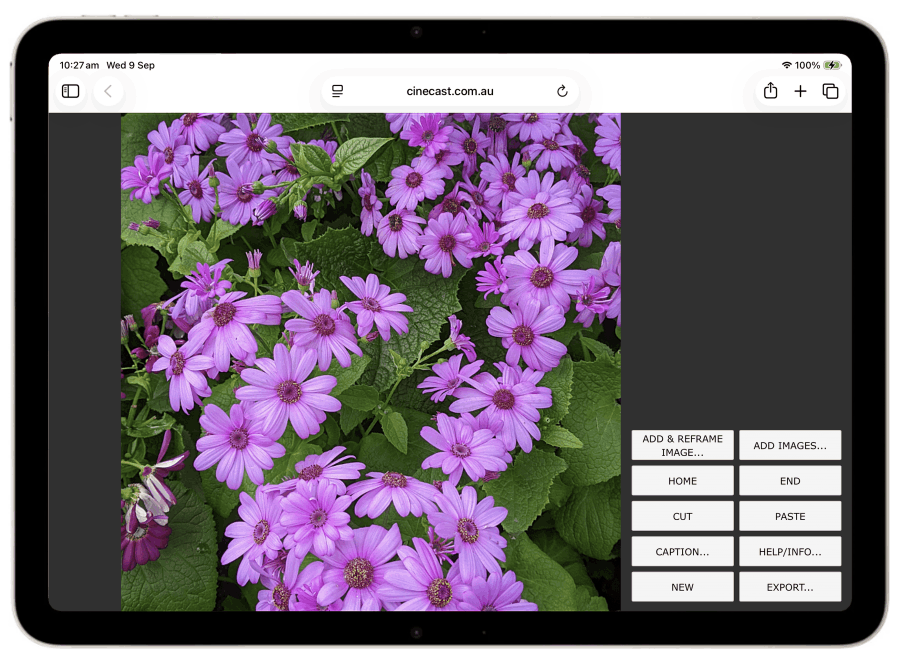
Figure 1 below shows the user interface when the app is run on an iPad.
The App's UI is simplicity itself. On the left you have the image window and on the right (or below the image, depending on device orientation, see Figure 2), are the menu buttons. Click or with touch devices, tap on ADD IMAGES to select the jpeg photos you wish to add to the album. Depending on your device, you may automatically be taken to your photos folder (eg. Android) or asked to select a folder (eg. iOS). Select one or multiple images. The images will then be loaded and processed.
If you wish to reframe the image before adding it to the album, tap ADD & REFRAME IMAGE, select your image and use zoom and panning controls to reframe your image. These are described in Section 4, below.
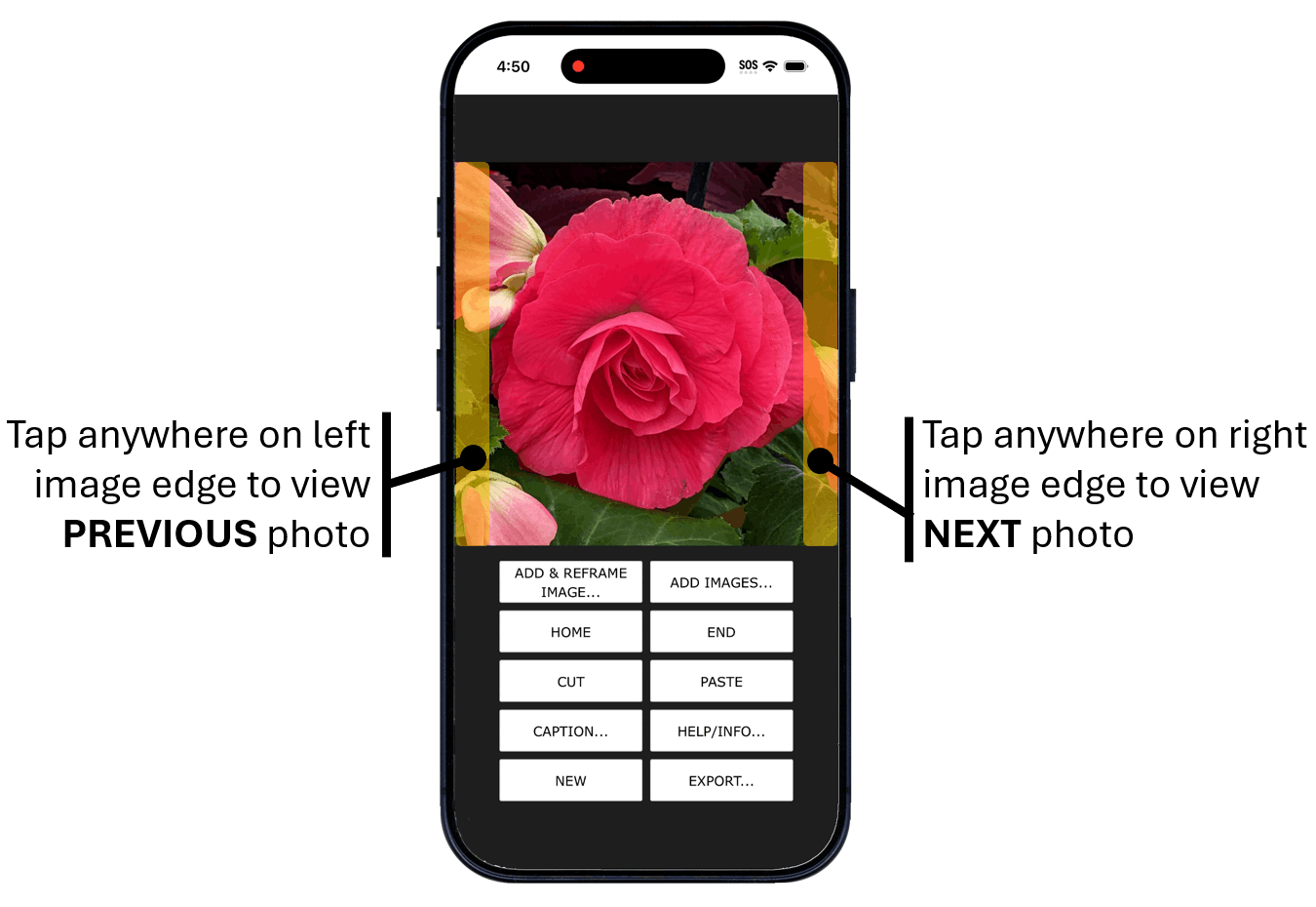
To navigate through the images, click/tap on on the left/right edges of the image itself to view the previous or next photo respectively (see Figure 2). To go to the start of the album, click/tap on HOME and for the end, click/tap on END. You can delete images using CUT and re-arrange the sequence of images using CUT and PASTE. To add an image caption, simply navigate to the desired image and click/tap on CAPTION, then enter your caption and click/tap OK.
To export your album click/tap on EXPORT. A default filename is allocated. click/tap on DOWNLOAD to save your album to the standard download folder. If asked, confirm download.
Click/tap NEW to start a new album. For additional information including links to the User Guide, click/tap on HELP/INFO.
SHORTCUTS
In addition to the menu buttons, CineCast Album Creator supports the following keyboard shortcuts:
ADD & REFRAME IMAGE "R" key
ADD IMAGES "O" key
HOME Home key
END End key
CUT Cmd+X (macOS, iOS), Ctrl+X (Windows)
PASTE Cmd+V (macOS, iOS), Ctrl+V(Windows)
CAPTION "C" key
HELP/INFO "H" key
NEW "N" key
EXPORT "E" key
NEXT Right Arrow key
PREVIOUS Left Arrow key
To close the App, simply close the browser tab.
To use the CineCast Album Viewer Web App simply click on the link https://cinecast.com.au/album/viewer. The App will download and run in the browser on your device (mobile phone/ tablet/laptop). While the App never uploads any of your images to the cloud, an internet connection must be maintained for the App to function correctly.
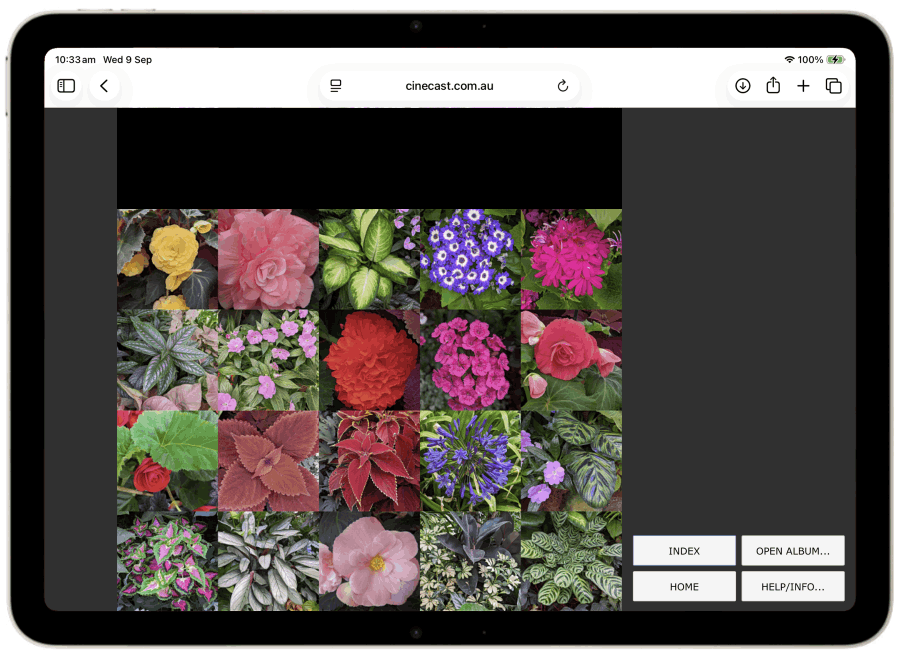
The App's UI is very simple. On the left you have the image window and on the right, (or below the image, depending on device orientation), are the menu buttons. Click or with touch devices, tap on OPEN ALBUM to select your jpeg album. Navigate to where your jpeg album is located and select it. The album will be loaded and the first image displayed. To navigate through the images, simply click/tap on the left/right image edge to view the PREVIOUS or NEXT photo respectively. Tap/click on HOME to return to the start of the album. You can also click on INDEX to view a thumbnail of all album images (see Figure 3 below); click/tap on a thumbnail to view the image full size. For additional information including links to the User Guide, click/tap on HELP/INFO.
ZOOMING
You can zoom/unzoom on an image by double tapping or double clicking on the image directly.
SHORTCUTS
In addition to the menu buttons, CineCast Album Viewer supports the following keyboard shortcuts:
INDEX "Escape" key
OPEN ALBUM "O" key
HOME Home key
HELP/INFO "H" key
END End key
NEXT Right Arrow key
PREVIOUS Left Arrow key
To close the App, simply close the browser tab.
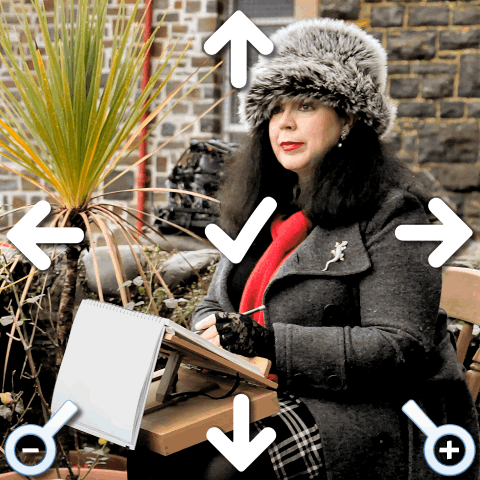
The image aspect ratio in CineCast Album is 1:1 (square). When adding images to an album using ADD IMAGES, CineCast Album Creator automatically adds black bars to adapt the source image aspect ratio to a square format. Aspect ratios of 1:1, 4:3, 3:2 and 16:9 are supported. However, an image can be manually reframed before being added to an album by using ADD & REFRAME IMAGE. In this case, once the image is loaded, it can be reframed using zooming and panning controls by tapping (or clicking) on the image itself in the positions shown by the icons in Figure 4 for the following corresponding functions:
Stepped Zoom in/out: +🔍 / -🔍
Stepped Pan Left: 🡄
Stepped Pan Right: 🡆
Stepped Pan Up: 🡅
Stepped Pan Down: 🡇
Confirm edits: ✔ (adds reframed image to current album)
When first launched, both CineCast Album Creator and Viewer Apps require user agreement to the CineCast Album End User License Agreement (EULA) in order to proceed. If the user agrees to the EULA, the App runs and writes a brief record in local storage in the web browser to avoid asking for EULA agreement each time the App is launched. If the web browser's local storage data is deleted by the user deleting browsing data or if the user clicks/taps on the App's Reset App to Default Settings in the Help/Info window, then on the next App launch, agreement to the EULA will be required in order to proceed. The information stored in local storage contains no personal data. In fact, CineCast Album Creator and Viewer Apps never request or store any personal data and require no registration of any kind to use the Apps. Also, as mentioned above, user photos are processed locally on device, not in the cloud.

Drag and Drop Website Builder